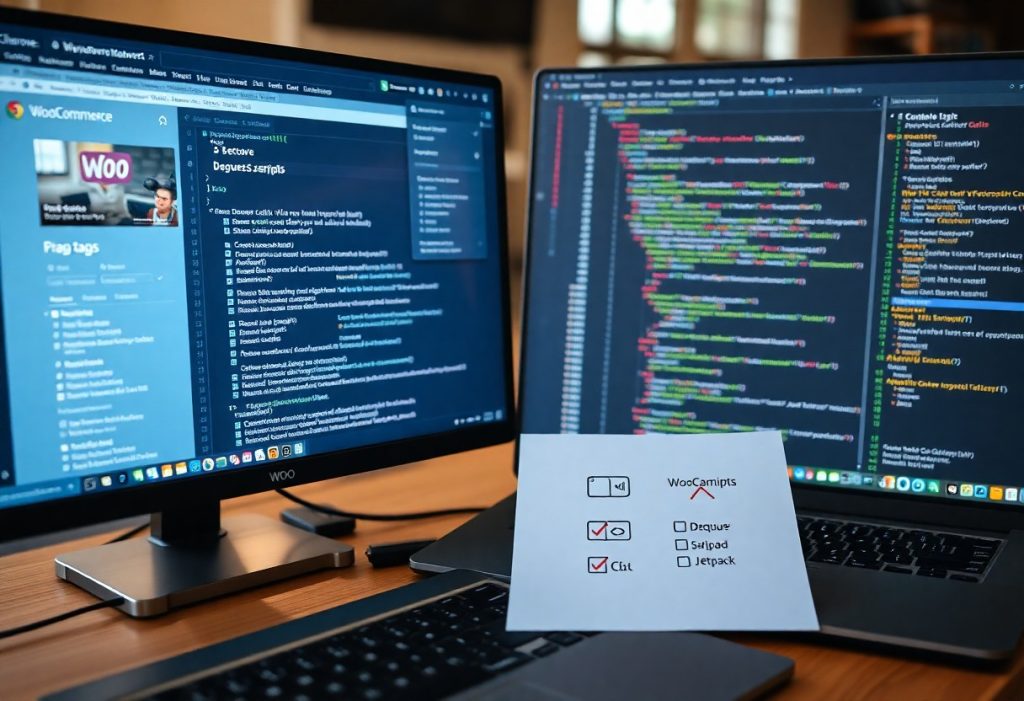
This guide shows you how to identify and remove unnecessary scripts on product pages to prevent page slowdowns and lost conversions, using techniques like conditional dequeueing, deferring, and selective loading so you achieve faster load times and higher conversions.
Key Takeaways:
- Audit product pages to identify and unload unnecessary scripts and styles, using conditional checks (is_product(), is_shop(), etc.) and wp_dequeue_script/wp_dequeue_style so only required assets load.
- Apply async/defer, combine and minify safely, and serve critical assets from a CDN or locally to reduce render-blocking and improve Time to Interactive; validate changes with Lighthouse and real-user metrics.
- Reduce third-party impact by removing unused plugins, replacing heavy plugins with lighter alternatives, and using selective-loading tools or custom functions (Asset CleanUp, Perfmatters, or theme hooks) to limit external scripts.
Analyzing the Architecture of WooCommerce Script Loading
Identifying render-blocking assets in the product template
Audit your product template with the browser Performance panel and plugin scanners to list render-blocking scripts, inline critical CSS, and synchronous third-party assets that delay your product page’s first paint.
Check template hooks and enqueued scripts so you can mark nonnecessary assets as defer or async, conditionally dequeue them on single-product pages, or move them to footer execution to reduce blocking time.
The relationship between script weight and Core Web Vitals
Heavier scripts increase parse and execution time, which pushes the Largest Contentful Paint (LCP) out and raises Total Blocking Time, so you should trim bundles and split code to get primary content rendering sooner.
Reducing unused code, tree-shaking modules, and deferring widgets helps you meet LCP and First Input Delay (FID) targets while preventing layout shifts that harm CLS.
Profiling with Lighthouse, WebPageTest, and the Performance panel reveals long tasks and script-heavy call stacks so you can prioritize splitting, web-worker offloading, or critical-path reduction to directly improve Core Web Vitals.

Common Types of Script Bloat in Modern E-commerce
| Redundant libraries | Multiple versions of jQuery or duplicate libs – increases requests, blocks rendering; deregister duplicates. |
| Legacy jQuery components | Old plugins rely on outdated APIs – breaks modern scripts; migrate to vanilla JS or updated libs. |
| Unused plugin scripts | Assets loaded site-wide for feature-light pages – inflates payload; conditionally enqueue per page. |
| Third-party widgets | Tracking, chat, reviews add latency and third-party requests – sandbox or lazy-load them. |
| Inline heavy scripts | Large inline bundles block parsing – move to external files and use defer/async. |
- script bloat
- WooCommerce
- product pages
- plugins
Redundant library dependencies and legacy jQuery components
You frequently inherit themes or plugins that enqueue multiple library versions, which creates script bloat and raises CPU work on product pages; prune duplicates, update extensions, and prefer modern APIs to reduce blocking and improve paint times.
Unused plugin-specific scripts on single product pages
Identify plugins that load styles and scripts globally when features live on a few templates, then dequeue or conditionally load assets so the single product page serves only what you need to preserve speed and stability.
Audit enqueued assets with debugging tools, test removals in staging, and apply defer or conditional loading to critical flows. Perceiving the performance gains helps you prioritize removals.
Key Factors Determining Optimal Script Execution
- script bloat
- WooCommerce
- TTI
- script placement
- external API calls
- defer/async
Impact of script placement on Time to Interactive (TTI)
Placing blocking scripts in the head increases Time to Interactive (TTI), so you should prioritize critical inline code and move analytics or widgets to after initial render to avoid render-blocking stalls on product pages.
Testing with throttled profiles shows that using async or defer and loading heavy vendor bundles after TTI cuts perceived load; you should use preload for truly critical assets and shift everything else off the main thread.
Evaluating the necessity of external API calls
Audit each external API call to decide if you can cache responses, aggregate server-side, or replace remote lookups with local data so that third-party latency doesn’t block interactivity; you must enforce short timeouts and asynchronous handling.
Measure real-world impact by simulating failures and using interaction metrics, then implement client-side caching, background sync, or server-side aggregation to reduce requests; Any API you call synchronously that blocks rendering should be deferred, cached, or removed.
Step-by-Step Guide to De-queueing Unnecessary Assets
| Step-by-Step Guide to De-queueing Unnecessary Assets | |
Auditing script handles using the global WordPress objects |
Audit the global |
Crafting conditional logic for targeted script removal |
Craft conditional checks like Tailor your logic to preserve dependencies by checking registered script deps and avoiding handles used by inline scripts or widgets, and mark safe candidates for dequeue with comments so you and your team can track changes. |
Testing for dependency breaks after asset exclusion |
Test changes in a staging environment and use browser devtools plus tools like Query Monitor to watch for console errors and missing resources after dequeueing; you must confirm interactive components still work. Verify edge cases such as product variations, AJAX endpoints, and third-party widgets while tracking network waterfall changes so you can restore any handle that causes breakage. |
Pros and Cons of Manual Script Management
Pros and Cons of Manual Script Management
| Pros | Cons |
|---|---|
| Fine-grained control over what loads | High ongoing maintenance effort |
| Smaller payloads and fewer requests | Risk of breaking third-party plugins |
| Better debugability for specific pages | Time-consuming to implement correctly |
| Ability to inline critical assets | Hard for non-developers to manage |
| Improved Lighthouse and Core Web Vitals | Fragile when hooks or handles change |
| Reduced runtime overhead on product pages | Potential for accidental script removal |
| Custom loading strategies per template | Scaling issues as site complexity grows |
| Predictable behavior when done conservatively | Requires strong testing and version control |
Performance benefits of code-level optimization
Code-level changes let you strip unused scripts and inline critical code, delivering a reduced payload and faster initial render. You can defer nonvital assets to lower blocking time and improve metrics that affect conversion.
Refactoring bundles and removing duplicates helps you cut network requests and memory use, so you see practical wins in real user metrics rather than marginal gains. You should measure before and after to validate the impact.
Sustainability and compatibility challenges in core updates
Core updates often change hooks, asset handles, and registration behavior, which can cause breaking updates if you hardcode dequeues or overrides. You must maintain a test suite and staging process to catch regressions early.
Compatibility work means you will patch shims, update selectors, and retest integrations whenever a plugin or WordPress itself changes, creating a persistent maintenance burden that you should budget for in sprint planning.
Expert Tips for Sustained Front-End Performance
Use targeted strategies to throttle script bloat on WooCommerce product pages so you prioritize inline critical JS and defer non-critical JavaScript.
- You audit bundles with a performance profiler and flag blocking vendors.
- You implement lazy-loading and bundle splitting for optional widgets.
- You enforce a performance budget in CI and code reviews to prevent regressions.
Implementing lazy-loading for non-critical JavaScript
Defer non-necessary widgets by applying lazy-loading via IntersectionObserver and dynamic imports so you only execute non-critical JavaScript when visible, reducing time-to-interactive and trimming script bloat.
Setting up a performance budget for developer workflows
Set clear thresholds for JS size, CPU work, and third-party impact so you enforce performance budget checks in CI and pull requests to protect front-end performance on WooCommerce product pages.
Knowing specific targets (for example, bundle JS under 150KB and third-party scripts limited to a single async tag) helps you block regressions, require dynamic imports or lighter alternatives, and integrate size and RUM checks into your pipeline.
Summing up
The guide equips you with practical steps to reduce script bloat on WooCommerce product pages: audit loaded scripts, dequeue unused assets, conditionally load features per product, bundle and minify where possible, and measure performance improvements. You can expect faster page loads, lower bounce rates, and easier maintenance when you apply these focused optimizations consistently.
FAQ
Q: How can I identify which scripts cause bloat on WooCommerce product pages?
A: Run a targeted audit on a representative product page. Use Chrome DevTools (Network waterfall, Performance recording, Coverage) to see largest files, blocking time, and unused code. Activate Query Monitor or add a temporary function that lists enqueued scripts and styles to find handles and sources. Compare the product page to a lean page to spot assets loaded only on product views. Disable suspected plugins or dequeue suspected handles in a staging environment to confirm impact. Track metrics such as Total Blocking Time (TBT), Largest Contentful Paint (LCP), and script download/execution size to prioritize removals.
Q: What are practical techniques to conditionally load or remove scripts and styles for product pages?
A: Register scripts and styles globally but enqueue them only when needed using WooCommerce conditionals (is_product(), is_product_category(), etc.). Use wp_register_script and wp_enqueue_script inside functions hooked to wp_enqueue_scripts and wrap with conditionals; use wp_dequeue_script/wp_dequeue_style to remove assets on non-relevant pages. Add async or defer attributes via the script_loader_tag filter for non-critical scripts to reduce main-thread blocking. Serve critical small inline JS for immediate UI needs and defer large widgets until after interactive. Use lightweight alternatives for heavy features (e.g., custom quick-view vs third-party widget). Example pattern: add_action(‘wp_enqueue_scripts’,’my_assets’); function my_assets(){ if(!is_product()){ wp_dequeue_script(‘heavy-handle’); } else { wp_enqueue_script(‘product-enhance’,’…’); }}.
Q: How should third-party scripts be managed and how do I measure improvements after optimization?
A: Treat third-party scripts as optional: load them async/defer, lazy-load via IntersectionObserver when their UI enters view, or inject them after user interaction or consent. Consider hosting a copy when license and security allow to reduce negotiation overhead, or replace with a lighter provider. Create a baseline using Lighthouse, WebPageTest, and real-user metrics (RUM) for LCP, Time to Interactive (TTI), TBT, and Cumulative Layout Shift (CLS). Implement one change at a time in staging, re-run lab tests and collect field data for several days, then roll changes to production gradually. Monitor error rates and user behavior to ensure no functional regressions after removing or deferring scripts.